VS Code Copilot Agent Tools: Your AI Developer Assistant
VS Code Copilot Agent Tools: Your AI Developer Assistant
VS Code's Copilot Chat includes 14 built-in tools that transform your AI assistant from a simple chatbot into a fully-fledged developer with hands. These tools let agents read code, modify files, run commands, and navigate your entire codebase.
Think of it this way: ChatGPT can only talk about code. Copilot agents can work with code.
How to Access Agent Tools
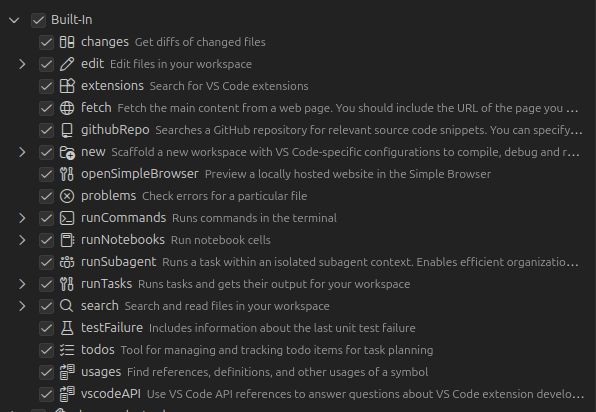
Here's where you'll find the agent tools in VS Code:

The 14 Built-in Agent Tools
Below are all the agent tools available to you. We're going to deep dive into each one so you know exactly how to leverage your agents and build better workflows:
Understanding Agent Tools
Agent tools are essentially actions that your Copilot agent can invoke. When you ask your agent a question, it decides which tools to use to solve the problem.
For example:
- "Fix all TypeScript errors" → Agent uses
problems+edittools - "Summarize what changed" → Agent uses
changestool - "Find where this function is called" → Agent uses
usagestool
Let's break down each tool and when to use it.
The 14 Built-in Tools Explained
🔄 changes — Get diffs of changed files
Lets the agent read what has changed since your last commit or pending changes.
Useful for:
- Generating commit messages
- Reviewing modifications
- Suggesting fixes only in changed code
- Creating code review summaries
Example use case:
"Summarize what changed in this commit."
✏️ edit — Edit files in your workspace
The most powerful tool. Allows the agent to apply file edits directly.
Examples:
- Modify code
- Add or update comments
- Create scaffolding
- Update config files
- Fix lint errors
- Refactor code across multiple files
This is where agents truly shine—they can autonomously improve your codebase.
📦 extensions — Search for VS Code extensions
Agent can search and discover VS Code extensions to recommend or install tools and dependencies.
Examples:
- "Which Rust tools should I install?"
- "Install Python formatter extension"
- "Find the Godot VS Code extension"
🌐 fetch — Fetch content from web pages
Agent can read external documentation, guides, and resources from the web.
Examples:
- Fetch API documentation
- Look up a GitHub README
- Get StackOverflow solutions
- Retrieve REST API documentation
Essentially HTTP GET + content scraping—powerful for learning from external sources.
🐙 githubRepo — Search GitHub repositories
Used for cross-repository searching on GitHub. Agent can find relevant code snippets from external repositories.
Examples:
- "Search for chess engine implementations in GitHub"
- "Find similar Godot enemy scripts"
- "Show me an example of ML model training"
This is how agents learn from the broader developer community.
🆕 new — Scaffold a new workspace
Creates a new project based on templates with VS Code-specific configurations.
Examples:
- Create React project
- Create FastAPI project
- Create Godot workspace
- Create Docker template
Perfect for quickly bootstrapping new projects with best practices.
🌍 openSimpleBrowser — Preview hosted resources
Opens external pages inside VS Code's Simple Browser.
Useful for:
- Opening local documentation
- Previewing running web apps
- Showing tutorials inline
- Testing live websites
⚠️ problems — Check errors in files
Reads diagnostics from VS Code's Problems panel (linting, type errors, warnings).
Examples:
- "Fix all TypeScript errors"
- "Explain the error in file X"
- "Suggest fixes for linting issues"
Agent can see exactly what's broken and suggest fixes.
💻 runCommands — Execute terminal commands
Gives your agent terminal execution capabilities. This is powerful—use wisely.
Examples:
- Run "npm install"
- Run "git status"
- Start dev server
- Run unit tests
- Build projects
Agent can execute build pipelines, deployment scripts, and development workflows.
📔 runNotebooks — Execute notebook cells
Allows execution in Jupyter notebooks and similar environments.
Examples:
- Evaluate data science cells
- Run ML training examples
- Execute analysis steps
- Debug notebook workflows
Great for data science and research workflows.
🔗 runSubagent — Chain multiple agents
Allows delegating tasks to another agent context, enabling sophisticated multi-agent workflows.
Examples:
- Delegate security analysis to specialized agent
- Pass code generation to architecture-focused agent
- Combine multiple specialized agents for complex problems
🏗️ runTasks — Execute VS Code tasks
Runs tasks defined in your tasks.json file.
Examples:
- Build project
- Lint entire repository
- Compile code
- Launch Godot build
- Run deployment scripts
Perfect for automating project workflows.
🔍 search — Search and read workspace files
One of the most important tools. Lets the agent navigate your entire codebase.
Supports:
- Keyword search across files
- Reading file content
- Understanding project structure
- Finding relevant code sections
Without this tool, the agent would be blind to your codebase.
❌ testFailure — Get unit test failure info
Reads context from failed tests, helping the agent understand what broke.
Examples:
- Explain test failure
- Suggest fixes
- Locate problematic lines
- Debug test errors
Agent becomes your debugging partner.
✅ todos — Manage TODO items
Searches TODO comments and lets agent manage them across your codebase.
Examples:
- Collect all TODOs
- Generate TODO backlog
- Convert todo notes to tasks
- Track technical debt
🎯 usages — Find symbol references
Semantic code navigation for finding where functions, classes, and variables are used.
Examples:
- "Where does this function get called?"
- "Find definition of AttackComponent"
- "List all usages of AIController"
Agent becomes your code navigator.
🔌 vscodeAPI — VS Code API reference
Helps agents build VS Code extensions by referencing official API docs.
Examples:
- Reference VS Code API
- Build VS Code extension
- Scaffold extension structure
- Debug extension manifest
Which Tools Matter Most?
| Tool | Why It Matters |
|------|---|
| search | Agent gains repo awareness |
| edit | Agent can modify code autonomously |
| runCommands | Agent can execute build/test workflows |
| githubRepo | Agent learns from external examples |
| fetch | Agent accesses external documentation |
| usages | Agent understands code relationships |
| runTasks | Agent can automate complex workflows |
The Big Picture: AI With Hands
These tools transform Copilot from a passive chatbot into an active developer assistant:
✅ Reads code ✅ Edits code ✅ Runs code ✅ Navigates projects ✅ Fetches external examples ✅ Performs refactors ✅ Builds projects ✅ Uses APIs ✅ Chains multiple agents
It's literally an AI developer assistant with hands.
Instead of asking ChatGPT "How do I fix this TypeScript error?" and then manually applying the fix, you can ask your Copilot agent "Fix all TypeScript errors" and watch it work.
Practical Example: Fixing Code Issues
Here's a real workflow with agent tools:
- You: "Fix all TypeScript errors in this file"
- Agent uses
problemsto read all errors - Agent uses
searchto understand the codebase - Agent uses
editto apply fixes - Agent uses
runCommandsto verify:npm run type-check - Result: All errors fixed and validated
Without these tools, the agent would just suggest fixes. With them, it executes them.
Building Custom Agents With Tools
Want to create a specialized agent for your workflow? You can configure agents to use specific tools.
Example agent configuration:
- Use
searchfor repo awareness - Use
githubRepofor cross-repo knowledge - Use
editfor code generation - Use
runCommandsfor build automation - Use
fetchfor external reference docs
Custom agents transform Copilot from a generic assistant into a specialized tool for your exact workflow.
The Future: AI-Augmented Development
As these tools become more sophisticated, the developer workflow shifts:
Before: Write code → Run tests → Debug → Fix manually With Agents: Describe what you want → Agent implements → Agent tests → Agent fixes issues
Copilot agents represent a fundamental shift in how we think about development tools. They're not just smarter autocomplete—they're collaborative partners that can reason about your codebase and make improvements autonomously.
Key Takeaway
VS Code Copilot agent tools aren't just neat features—they're the foundation of AI-assisted development. Understanding what each tool does helps you leverage agents effectively and build custom agents tailored to your specific needs.
The next generation of developer tools will be those that can not just suggest code, but understand your project and take action to improve it.
Related Articles
Check out these other articles on building AI-powered products:
-
Beyond ChatGPT Chess: Building the Ultimate Chess Analysis App — Learn how to combine computer vision, Stockfish engines, and GPT to analyze chess positions from real boards with superhuman insight.
-
Building Dark Souls meets Chess with Godot and LLMs — Discover how we built a roguelite chess game using AI tools for code generation while maintaining quality and avoiding AI slop.